Open source · Local AI · Built for macOS
Better writing, one keystroke away.
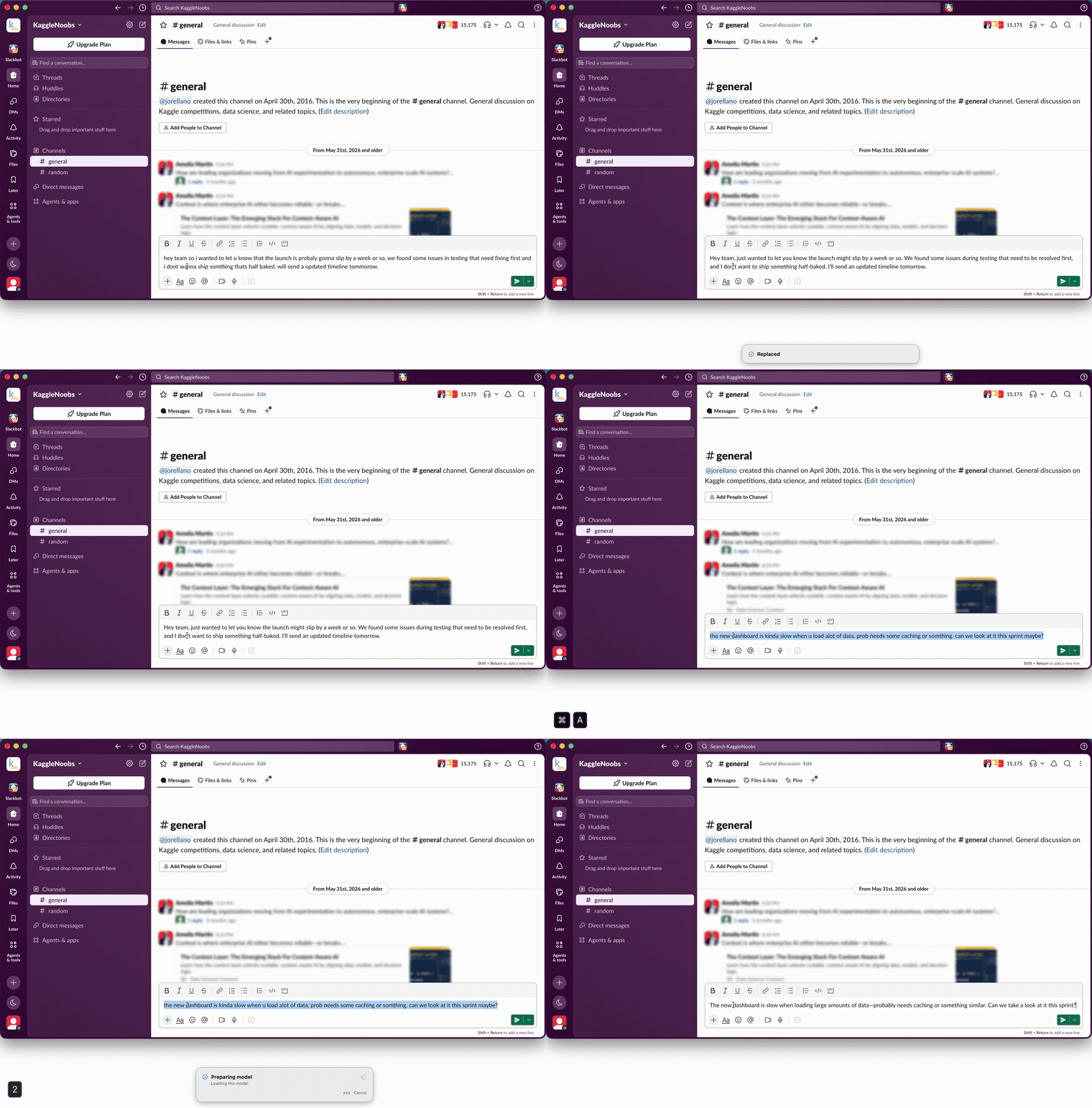
Select any text, press ⌥R, and a sharper version takes its place — in Slack, Linear, Google Docs, your favourite editors, your favourite browsers, and the rest of the Mac apps you type in. The built-in model runs on your Mac, so nothing you write is sent to a server, and it keeps working on a plane.
⌥R in the app you are already typing in
macOS 15 or later on Apple silicon. Sets up its own local model on first run. Install steps · Releases and checksums
- Local inferenceThe model runs on your Mac with MLX.
- MIT licensedSource, issues, and releases are public.
- Apple siliconmacOS 15 or later.
- Offline after setupRewriting works with networking switched off.
How it works
Two steps. That is the whole product.
No window to switch to, no box to paste into, no copying anything anywhere. Everest works on the selection you already made, in the app you already have open, and puts the result back where you were typing.
-
Select the text
A word, a sentence, or the whole message — in the app you are already typing in. Everest reads the selection, not the app, so there is nothing to set up per app.
-
Press ⌥R
R is for rewrite. A local rewrite streams into a small floating panel and waits there for you. Edit it if you like, then ↩ puts it in place of your selection and esc keeps what you wrote; ⌘D shows exactly what changed. Drag the panel anywhere and it opens there next time, and ⌘Z puts the original back in the app's own undo stack.
Where Everest cannot verify the target after generating, it holds the rewrite in the panel for you to copy instead of guessing. See where it replaces in place
Where it works
It goes where you already type.
There are no per-app integrations to wait for and no plugins to install. Everest acts on whatever you have selected, so the app you are in is almost never the question — the question is only whether that app will take the rewrite back.
In practice, that means places like
- Slack
- Linear
- Chrome
- Gmail
- Google Docs
- Microsoft Outlook
- Notion
- and many more of your favourite Mac apps
Those are examples of the kinds of app the two rules below cover, not a tested list. The apps actually exercised by hand are named further down, and that shorter list is the stronger claim.
Normally replaces in place
- Native macOS text fields
- Browser text areas and rich-text editors
- Code and text editors, including VS Code, Cursor, Sublime Text, and Xcode
- Chat and mail apps, including Slack, Discord, Mail, and Messages
- Web apps that own their own editor, such as Linear, ChatGPT, and Google Chat
- Apps that expose nothing usable to Accessibility, such as Sublime Text and Google Docs, through a verified paste
Hands you the rewrite to paste
- Terminals, where a paste lands at a live prompt rather than replacing a selection
- PDFs and ordinary web prose, which take no paste at all
- Anything Everest cannot re-verify as the same target after generation
Verified by hand in
- Slack
- Sublime Text
- Linear
- ChatGPT
- Google Chat
- Google Docs
Everything else follows the two rules above rather than a per-app list, because a support matrix is only worth publishing once each app on it has actually been tried. App behaviour varies by version and by editor. When Everest cannot verify an automatic replacement, holding the rewrite in the panel is the safe result, not a failed generation. Password and secure fields are refused before they are read; see Privacy. Found an app that behaves badly? Open an issue.
Privacy
Your writing is processed on your Mac, or on an Ollama server you choose.
Most rewriting tools post your draft to somebody's server. With its built-in models, Everest runs the model on the machine in front of you, which is why it still works with the Wi-Fi off, and why you can read the exact prompt it sends.
What does not leave
With the built-in models, the model runs locally. Your selections and your rewrites are not uploaded, and there is no account, no telemetry, no crash reporting, and no analytics. Once the model is on disk, rewriting works with networking switched off.
Everest keeps a small diagnostics file in ~/Library/Logs/Everest, capped at
512 KB, so that reporting a bug does not depend on reproducing it on demand. It
records versions, whether Accessibility was granted and which engine is selected, never
your text. Nothing sends it anywhere: it is plain text, and attaching it to an issue is
your decision.
What does
With the built-in models, two requests, neither carrying your text. The first setup downloads model weights from Hugging Face at a pinned revision. Update checks ask GitHub whether a newer version exists, and that request discloses ordinary HTTP metadata: your IP address, the app version, and your macOS version.
If you choose Ollama in Settings ▸ Model, Everest sends what you rewrite to the Ollama server at the address you set: this Mac by default, or another computer if you enter one, in which case Settings warns you and macOS asks for Local Network access. Everest only offers models that run on that server itself, never Ollama's cloud models, and keeps no copy of what it sends.
The clipboard, which is the real exception
Where macOS will not hand over a selection, such as terminals, PDFs, Google Docs and Sublime Text, Everest reads it with a synthetic ⌘C and pastes rewrites back the same way. Anything on the general clipboard is eligible for Handoff, so with Handoff on, macOS may sync it to your own devices for a couple of minutes. That sync is between your devices and encrypted, and no app can opt out of it. Turn Handoff off in System Settings ▸ General if you would rather it did not happen.
Password fields
Everest checks the secure-field subrole before reading and the secure-input flag again immediately before any synthetic copy. Both checks need the app to expose something, and an app that exposes neither is a case this chain has no way to see. Those are what the exclusion list in Settings ▸ Privacy is for.
Features
Small, fast, and yours to change.
-
Local by design
The rewrite model runs with MLX on your Mac. Your selection and the generated text are not uploaded to an AI service, and there is no account and no telemetry.
-
No per-app setup
One global shortcut, and it acts on the selection rather than on an integration — so it turns up in Slack, Linear, Google Docs, ChatGPT, VS Code, Mail, Notes and ordinary macOS text fields alike. Terminals and PDFs get an honest fallback instead of a silent failure.
-
You watch it think
The answer forms in a lightweight floating panel while it generates, so you can see where it is going and stop it. Esc cancels the rewrite before anything is written.
-
Batteries included, and swappable
Six styles ship with the app. Each one is a plain-English instruction you can open and edit in Settings, and you can add your own for the thing you keep asking for.
-
Your shortcuts
Start with ⌥R and ⌥⇧R, or record bindings that suit you. Everest tells you which character a binding costs.
-
Open and inspectable
Everest is MIT licensed Swift. Read the prompts, read the clipboard handling, file an issue, or send a pull request.
Shortcuts and styles
Six styles out of the box. Edit them, or write your own.
A style is just an instruction in plain English. Everest ships six it thinks you will use most, shows you exactly what each one says, and lets you change every word of it — or add a new one and give it a name.
Styles
- Proofreadcorrections only
- Professionalpolished and confident
- Friendlywarm and natural
- Conciseshorter and more direct
- Expandclarify and develop
- Simplifyplain and readable
Each instruction is editable in Settings ▸ Styles, and you can add your own. The prompt-injection frame around them is not editable, on purpose. Read the shipped prompts.
Keys
| Shortcut | Action |
|---|---|
| ⌥R | Quick Improve. One prompt, one rewrite. R for rewrite. |
| ⌥⇧R | Choose a style, then rewrite. |
| Esc | Cancel a rewrite that is still generating. |
| ⌘Z | Undo the replacement, in the app's own undo stack. |
Both global shortcuts are configurable in Settings ▸ General. Every printable binding costs you a character, and Everest tells you which one. It also cautions against the dead keys ⌥I ⌥E ⌥U ⌥N, because binding one of those breaks accented typing everywhere.
Install
Four steps, once.
Everest is signed with an Apple Developer ID and notarised by Apple, so it opens on a double click. No Gatekeeper warning, no trip to System Settings.
-
Download
Everest.dmg, or pick a specific build from Releases. - Open the disk image and drag Everest to Applications.
- Open Everest, and grant Accessibility access when it guides you there.
- Let Everest download the default local model, about 2.3 GB. It is not bundled in the app.
Requirements
Local inference on modern Macs.
What you need
- macOS 15 or later
- An Apple-silicon Mac
- About 2.3 GB of free space for the default model, which is stored outside the app
- A network connection for the first model download and for update checks. Rewriting itself works offline.
Models
- Qwen3-4B-Instruct-2507, 4-bit, through MLX. The default, about 2.3 GB.
- Qwen3-30B-A3B-Instruct-2507, 4-bit. Higher quality, about 17.2 GB, offered only on Macs with the memory to hold it.
- Apple Intelligence. Zero download, on-device, and needs macOS 26; below that Everest says so and keeps using its own model. Its guardrails can cut off ordinary text mid-sentence.
Model weights are downloaded from Hugging Face at a pinned commit, never a branch, and they carry their own Apache-2.0 licence. They are not bundled with Everest and are not covered by its MIT licence. A local model can still produce wrong text, so review changes that matter and use ⌘Z when you need to.
FAQ
Questions.
Everything people ask before installing it, answered without a marketing voice.
Is Everest free?
Yes. Everest is free and open source under the MIT licence. There is no trial, no subscription, and no upsell inside the app.
Does my text leave my Mac?
Your selections and your rewrites are not uploaded. Model downloads contact Hugging Face, and update checks contact GitHub; neither request carries your text. The clipboard fallback is the one real exception, because anything on the general clipboard is eligible for Handoff and for clipboard-history apps. The privacy policy is the full account.
Can I change what the styles actually do?
Yes, all of them. Each style is a short instruction in plain English, and Settings ▸ Styles shows you the exact wording and lets you edit it. You can also add your own styles for whatever you find yourself asking for repeatedly. What you cannot edit is the prompt-injection frame wrapped around your instruction, which is what stops selected text from redirecting the app. The shipped prompts are in the repository.
Why does Everest need Accessibility permission?
It is how macOS lets one app read the focused selection in another app and write a replacement back. macOS has no narrower permission for this, and it is also why Everest cannot be sandboxed or sold on the Mac App Store. Without it, Everest cannot do the one thing it is for.
Will macOS block the first launch?
No. Everest is signed with an Apple Developer ID and notarised by Apple, so it opens on a double click with no Gatekeeper warning.
Does it work in terminals and PDFs?
It reads the selection there, but it does not paste into them. A paste in a terminal lands at the live prompt rather than replacing a selection, and a PDF has no editable buffer at all. In both cases Everest keeps the rewrite in the panel and says so, so you can paste it where you want it.
Does it read password fields?
Everest refuses the secure fields and secure-input states it can recognise, checked once before reading and again immediately before any synthetic copy. Both checks need the app to expose something, and an app exposing neither is a case the checks cannot see, so you can exclude any app you would rather Everest never inspected in Settings ▸ Privacy.
Does it work offline?
Rewriting does, once the model is on disk. Installing the model and checking for updates need a network connection.
How are updates delivered?
Automatic update checks are on by default, because a security fix only helps the people it reaches, and a prompt shown on second launch gets dismissed by exactly the users who most need the fix. The switch is in Settings ▸ Privacy ▸ Software updates, and Check for Updates… in the menu-bar menu keeps working whichever way you set it. Updates come from Sparkle and a signed feed in the repository; every build is signed with an EdDSA key, and Sparkle refuses an update whose signature does not verify.
How do I uninstall it?
Quit Everest and move it from Applications to the Trash. Then delete the model directory and the preferences file, and remove Everest from System Settings ▸ Privacy & Security ▸ Accessibility. The privacy policy lists the exact paths.
Does it support Intel Macs?
No. Everest is an Apple-silicon app, and the local model runs through MLX, which targets Apple silicon.
Open source
Built in the open.
Everest is an MIT-licensed Swift app. The source, the issue tracker, the release history, the privacy policy, the security policy, and the contribution guide are all public on GitHub.

Improve the sentence without sending it away.
Free, open source, and it runs on your Mac.
Free and MIT licensed. macOS 15 or later on Apple silicon. Install steps · Releases and checksums